To get a faster internet connection speed, one can practice different methods and hacks. These methods to accelerate your internet speed can include many different fixes such as software tweaks, hardware tricks or some basic security fixes. Also, the problem of a slow internet can be due to the issues with your DNS settings, your Wi-Fi placement, wrong selection of Wi-Fi channel or some security reason. So, I will try to resolve each and every problem one by one and tell you about the tweaks to improve your internet speed and get an amazing browsing experience.
We often receive comments from our visitors saying “My internet speed is so slow, what to do?”, “Why my Internet is slow in Windows”,”Why my Internet is slow in my Mac/ Linux system?”, “I’m getting very slow internet speed even after purchasing a good plan!”, “Any shortcut to increase the internet connection speed?” and more. We try to reply to almost everyone, but, sometimes, it’s hard to understand the problem as it could be any one of the above-mentioned reasons.To be very honest, there isn’t a single way to avoid the slow connection. So, in this in-depth tutorial, I’m going to tell you almost every single possible way to check and increase your internet connection speed. And, this article should be able to provide solutions like making the Wi-Fi speed faster and increasing the internet connection speed.
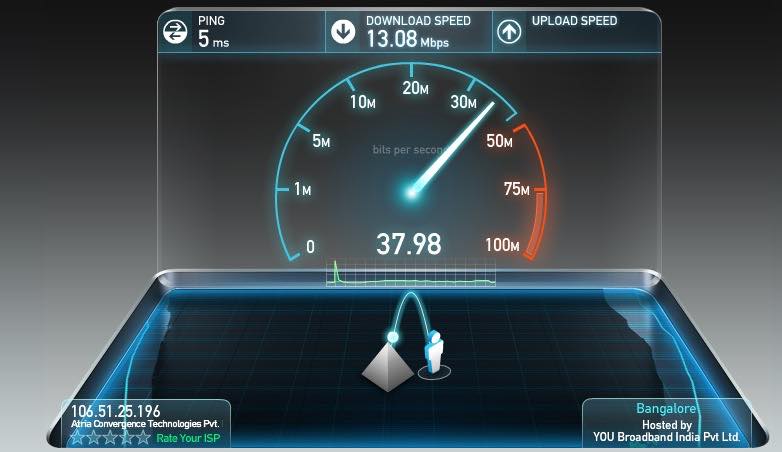
Take the old Ookla’s internet Speedtest here and Ookla’s HTML 5 Speedtest here. Using Ookla’s Speedtest to test your speed is very simple. All you need to do is visit the Speedtest.net website and click on the BEGIN TEST button.
Take the Ookla’s Pingtest here.

Windows users can check the background activities by pressing CTR+Shift+ESC, whereas Mac users can search for “Activity Monitor” in Spotlight search.
Similar commands can also be used for Linux systems. For example, you can go ahead and use
These background activities also involve system updates. It might be possible that you are experiencing slow internet speed temporarily. So, as soon as the update is completed, your internet speed will come back to normal. Although, you can always turn off the system update but that would not be recommended.
I’ve already written few article on how to make Mozilla Firefox and Google Chrome faster for web browsing. I will also be writing something on Edge and Safari for faster browsing in future. Meanwhile, if you are a Google Chrome user, you can always read my article on how to stop Chrome from killing your computer and reduce the RAM usage.
For Google DNS configuration, use these IP addresses:

So, if you are having trouble getting a good internet speed, check and make sure that your torrents are paused. You can also uncheck the “Start xyzTorrent on system startup” while installing the software.
Read the following points to know small fixes to improve your internet speed.
If you want to know how you can enhance Wi-Fi signal by choosing a right place in detail, read our dedicated article on the same topic here. This post contains some important points based on physics.
If you are willing to know more about choosing the correct channel to get a better Wi-Fi speed, read our in-depth article here.

But this method has its own limitations as one side would get blocked. So, you would have to adjust it every time. If you are willing to know more about this method visit this link.
But again, it’s up to you to choose which type of connection you want. We have already told you about the speed test and the ping test in the starting of the article — take the tests and decide what kind of connection would be suitable for you. Read more about Wi-Fi vs Ethernet comparison here.
Use the below command in CMD to check if ‘Receive Window Autotuning level’ is ‘Normal’:

If you are looking for something more specific, here’s how to monitor overheating issue in Linux and Windows 10 computers.
Make sure that along with your operating system, your antivirus solution is up-to-date and offers the best protection. If you are looking for some antivirus product, don’t forget to check out our list of the best antivirus software of 2016.
In the next point, I’ll be explaining more on network security that will also cover some steps to protect your router from getting hacked.
Below are few steps to protect your Wi-Fi router from getting hacked . You can also visit this link to read the in-depth article on the same.
Software fixes for increasing internet speed:
Take your internet speed test
Take the old Ookla’s internet Speedtest here and Ookla’s HTML 5 Speedtest here. Using Ookla’s Speedtest to test your speed is very simple. All you need to do is visit the Speedtest.net website and click on the BEGIN TEST button.
Take the Ookla’s Pingtest here.
Make sure your browser and OS is updated
- Download the latest version of Mozilla Firefox here.
- Download the latest version of Google Chrome here.
- Download the latest version of Safari here.
- Download the latest version of Internet Explorer here.
- Download the latest version of Edge browser here.’
Check for background activities
Windows users can check the background activities by pressing CTR+Shift+ESC, whereas Mac users can search for “Activity Monitor” in Spotlight search.
Similar commands can also be used for Linux systems. For example, you can go ahead and use
gnome-system-monitor command to fire up the system monitor app on your Ubuntu PC.These background activities also involve system updates. It might be possible that you are experiencing slow internet speed temporarily. So, as soon as the update is completed, your internet speed will come back to normal. Although, you can always turn off the system update but that would not be recommended.
Browser tweaks for faster internet surfing
I’ve already written few article on how to make Mozilla Firefox and Google Chrome faster for web browsing. I will also be writing something on Edge and Safari for faster browsing in future. Meanwhile, if you are a Google Chrome user, you can always read my article on how to stop Chrome from killing your computer and reduce the RAM usage.
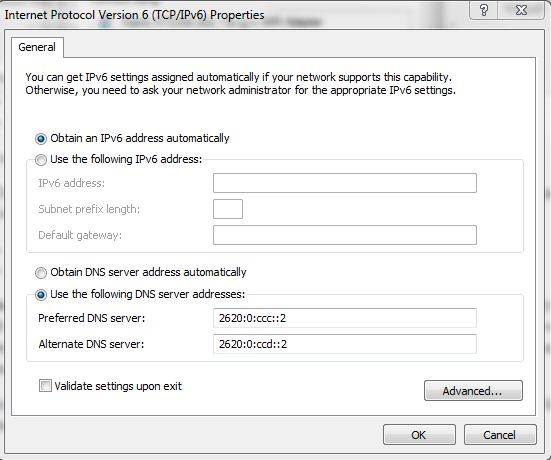
DNS hack for speeding up the internet
For Google DNS configuration, use these IP addresses:
- For IPv4: 8.8.8.8 and/or 8.8.4.4.
- For IPv6: 2001:4860:4860::8888 and/or 2001:4860:4860::8844
- For IPv4:
- Preferred DNS server: 208.67.222.222
- Alternate DNS server: 208.67.220.220
- For IPv6:
- Preferred DNS server: 2620:0:ccc::2
- Alternate DNS server: 2620:0:ccd::2
Stop torrent downloading and uploading
So, if you are having trouble getting a good internet speed, check and make sure that your torrents are paused. You can also uncheck the “Start xyzTorrent on system startup” while installing the software.
Free up the unnecessary used space
Scan and remove adware
Hardware fixes for faster internet
Find problem with your Wi-Fi
Read the following points to know small fixes to improve your internet speed.
Wi-Fi router placement to get good connection
If you want to know how you can enhance Wi-Fi signal by choosing a right place in detail, read our dedicated article on the same topic here. This post contains some important points based on physics.
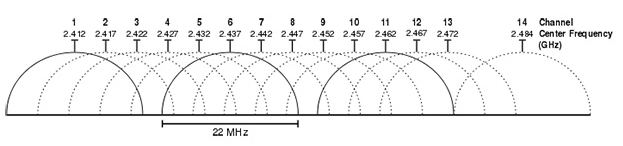
Choose the correct Wi-Fi channel
If you are willing to know more about choosing the correct channel to get a better Wi-Fi speed, read our in-depth article here.
Boost your Wi-Fi with beer can
But this method has its own limitations as one side would get blocked. So, you would have to adjust it every time. If you are willing to know more about this method visit this link.
Best practices to increase your Wi-fi speed
- Check and update your router’s firmware.
- Take ping test at PingTest.net regularly (Different from the usual speed test).
- Password protect your internet router.
- Disconnect old devices.
- Check for the signal interference from devices like cordless phones, microwaves, baby monitors etc.
Use repeater to strengthen signal
Use Ethernet over Wi-Fi if possible
But again, it’s up to you to choose which type of connection you want. We have already told you about the speed test and the ping test in the starting of the article — take the tests and decide what kind of connection would be suitable for you. Read more about Wi-Fi vs Ethernet comparison here.
Speed Up Internet Using CMD
Use the below command in CMD to check if ‘Receive Window Autotuning level’ is ‘Normal’:
- netsh interface tcp show global
- netsh int tcp set global autotuninglevel=normal
- netsh interface tcp set heuristics disabled
Clean up hardware, don’t let it heat up
If you are looking for something more specific, here’s how to monitor overheating issue in Linux and Windows 10 computers.
Security Fixes for high internet speed:
Scan for malware and adware and remove them
Make sure that along with your operating system, your antivirus solution is up-to-date and offers the best protection. If you are looking for some antivirus product, don’t forget to check out our list of the best antivirus software of 2016.
Check and protect router from hacking attacks
In the next point, I’ll be explaining more on network security that will also cover some steps to protect your router from getting hacked.
Set Network Security
Below are few steps to protect your Wi-Fi router from getting hacked . You can also visit this link to read the in-depth article on the same.
- Turn on the firewall
- Enable WPA2 (Wi-Fi protected access)
- Change the default SSID network name.
- Use a strong password or passphrase maybe
- Disable remote administration
- Enable MAC filter and logging feature.

एक टिप्पणी भेजें